Tiled Galleries Using the Classical Editor:
If you’re using WordPress 4.9.9 or lower, or if you are using the classical editor, follow these instructions:
- Make sure PhotoSwipe Masonry Gallery is installed & activated.
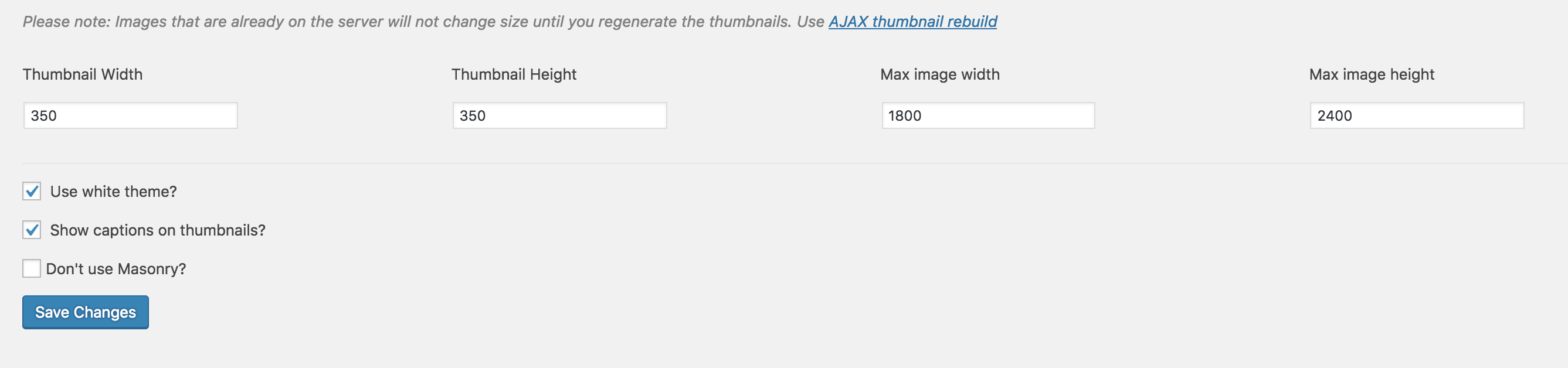
- Go to Settings >> PhotoSwipe. Make settings look like this:
- Now, go to a page and create a regular WordPress gallery. Your galleries will be displayed in a gorgeous masonry grid.
If you don’t know how to create a gallery, learn how with this tutorial!
Tiled Galleries In WordPress 5.0:
If you’re using WordPress 5.0 or above, please follow these instructions:
- Make sure Block Gallery plugin is installed & activated.
- Edit a page or post and add a new “Masonry Gallery” block.
- Upload or select the photos you want to appear in your masonry gallery. Change the block settings for the masonry gallery block as desired.
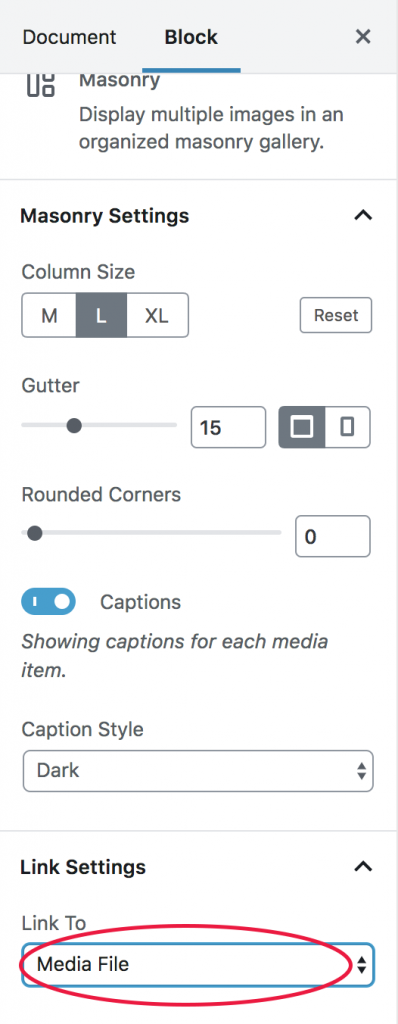
- If you would like your images to pop up in a lightbox, install & activate a plugin like Lightbox with Photoswipe. In the masonry gallery block settings, make sure LINK SETTINGS are set to “Media File”: