
There are a few different ways to set up your portfolio, but this shows you how to set it up exactly like the theme demo.
First, make sure you have the Portfolio Post Type plugin and Jetpack installed and activated.
Once activated, you should see a “Portfolio” tab in the sidebar of your WordPress administration area. From here, you can add in your posts, called “portfolio items”.
You can view your main portfolio at http://yoururl.com/portfolio/.
If you’re receiving a 404 error page when you view your portfolio, you might need to reset your Permalinks. To do this, go to Settings >> Permalinks and click “save” on the bottom, without making any changes.
Using A Slider With Your Portfolio
You can easily create and place a slider on one of your portfolio pages! Follow the same steps as you did to create the homepage slider. Then, just place the shortcode for that slider on your page.
Using Masonry-Style Galleries With Your Portfolio
Summary of video:
- Go to Jetpack >> Settings and ensure Carousel and Tiled Galleries are turned on.
- To add a masonry-style gallery to a page, click the “Add Media” button, then “Create Gallery”
- Select your photos for the gallery, then click the “Create a new gallery” button
- Change Gallery Settings to match this:
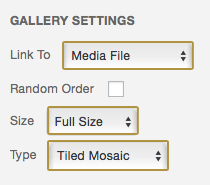
- Click “Insert gallery”
- If you need to edit the gallery, make sure you’re in visual mode, then click anywhere in the gallery area. The whole gallery will be highlighted. Click on the pencil icon to edit your gallery.
Setting Featured Image
You need to set the featured image for each portfolio item.
The featured image that you set for each portfolio item is what displays on the main portfolio page, so make sure you set one! Generally, the “featured image” area is located to the right of the post editor box, a little bit down the page. It looks like this:

Turning Off Comments
For some reason, the portfolio plugin automatically turns on comments for each portfolio item. So, you need to manually turn them off. To do so, scroll to the bottom of the post editor page to the “Discussion” area. Uncheck the “allow comments” box:

Changing the Background Color of the Carousel
Jetpack allows you to change the color of the carousel to either black or white. To do this, go to Settings >> Media and change the background color under the “Image Gallery Carousel” area.
Add Title to Main Portfolio Page
By default, the main portfolio page will not have a title on it.
To add one in, go to Portfolio >> Archive Settings and add a title in the “Archive Headline” area. Save.