
Below is a table that lists the homepage widget areas and the widgets that you can place in them. Click the IMAGE LINK to see what the widget looks like, and the INSTRUCTIONS LINK to be brought to set-up instructions.
You can add other widgets too, however, additional coding might be needed on your end to optimize how it looks.
| Widget Area | Available Widget(s) |
|---|---|
| Home Top Slider | Soliloquy Slider IMAGE LINK INSTRUCTIONS LINK |
| Home Mid Left | Text Widget (Welcome Message) IMAGE LINK INSTRUCTIONS LINK |
| Simple Social Icons GENERAL INSTRUCTIONS | |
| Genesis eNews Extended (Subscribe form) GENERAL INSTRUCTIONS | |
| Soliloquy Slider (width: 707px) IMAGE LINK INSTRUCTIONS LINK | |
| Home Mid Right | Text Widget (Text) IMAGE LINK INSTRUCTIONS LINK |
| Simple Social Icons GENERAL INSTRUCTIONS | |
| Genesis eNews Extended (Subscribe form) GENERAL INSTRUCTIONS | |
| Soliloquy Slider (width: 337px) IMAGE LINK [icon name=”fa-file-text-o”] | |
| Home Left, Home Center, Home Right | Text Widget IMAGE LINK INSTRUCTIONS LINK |
| Genesis – Featured Page IMAGE LINK INSTRUCTIONS LINK | |
| Home Bottom | Text Widget IMAGE LINK INSTRUCTIONS LINK |
| Genesis eNews Extended (Subscribe form) GENERAL INSTRUCTIONS | |
| WooCommerce Products IMAGE LINK INSTRUCTIONS LINK | |
| Home Featured | Genesis – Featured Posts IMAGE LINK INSTRUCTIONS LINK |

Home Top Slider
Slider
The image size for the slider in the Home Top Slider widget area is 2500 x [any height] px. First install the Soliloquy Lite plugin (got to Plugins >> Add New and search for “Responsive WordPress Slider – Soliloquy Lite”).
Once installed, you’ll see a new tab called “Soliloquy” in the sidebar within your WordPress admin area. Click Soliloquy >> Add New to add a new slider. Click “config” and modify your settings as outlined below:

Click to enlarge
(You can adjust the duration and speed if you want.) Upload your images. Click on the blue “i” icon to edit the slider image’s meta data and add in your caption and/or link button. Use this code in the image caption box (view photo instructions here):
<div class="cap">
Your Message Here
</div>
<a class="soliloquy-button" href="http://URLHERE">
Button Text Here
</a>
Or, if you don’t want to use the cursive, use this code for sans-serif font:
<h1 class="soliloquy-fc-caption">
Your Message Here
</h1>
<a class="soliloquy-button" href="http://URLHERE">
Button Text Here
</a>
Once your slider is ready, copy and paste the shortcode (will looking something like [soliloquy id=”432″]) into a Text widget (on the Appearance >> Widgets page) under the Home Top Slider widget area.
Home Mid Left
Text Widget (Welcome Message)
Go to Appearance >> Widgets and drag and drop a Text widget to the Home Mid Left area. Type in your message. If you want text to appear in cursive, wrap in H3 tags like:
<h3>your cursive message here</h3>
Slider
The image size for the slider in the Home Mid Right widget area is 707 x [any height] px. First install the Soliloquy Lite plugin (got to Plugins >> Add New and search for “Responsive WordPress Slider – Soliloquy Lite”).
Once installed, you’ll see a new tab called “Soliloquy” in the sidebar within your WordPress admin area. Click Soliloquy >> Add New to add a new slider. Click “config” and modify your settings as outlined below:

Click to enlarge
(You can adjust the duration and speed if you want.) Upload your images and save. Once your slider is ready, copy and paste the shortcode (will looking something like [soliloquy id=”432″]) into a Text widget (on the Appearance >> Widgets page) under the Home Mid Left widget area. Make sure to wrap the slider in center tags like so:
<center>[soliloquy id="432"]</center>
Home Mid Right
Text Widget (Welcome Message)
Go to Appearance >> Widgets and drag and drop a Text widget to the Home Mid Right area. Type in your message. If you want text to appear in cursive, wrap in H3 tags like:
<h3>your cursive message here</h3>
Slider
The image size for the slider in the Home Mid Right widget area is 337 x [any height] px. First install the Soliloquy Lite plugin (got to Plugins >> Add New and search for “Responsive WordPress Slider – Soliloquy Lite”).
Once installed, you’ll see a new tab called “Soliloquy” in the sidebar within your WordPress admin area. Click Soliloquy >> Add New to add a new slider. Click “config” and modify your settings as outlined below:

Click to enlarge
(You can adjust the duration and speed if you want.) Upload your images and save. Once your slider is ready, copy and paste the shortcode (will looking something like [soliloquy id=”432″]) into a Text widget (on the Appearance >> Widgets page) under the Home Mid Right widget area. Make sure to wrap the slider in center tags like so:
<center>[soliloquy id="432"]</center>
Home Left, Home Center, and Home Right Widget areas
Text Widgets
Go to Appearance >> Widgets and drag and drop a Text widget to the home-left, home-center, or home-right area. Copy and paste the following code, editing where necessary:
<center>
<br /><br /><h3>Heading Here</h3>
Your text here
</center>
To add the icons download and install the Better Font Awesome plugin. Add icons to the text widget via shortcode, e.g.
<span class="homeicon">[icon name="fa-bolt" size="2x"]</span>
right after the first < center > tag. Use the Font Awesome cheat sheet to see all your choices.
Repeat as necessary for the other two widget areas.
Genesis – Featured Page
Go to Appearance >> Widgets and drag and drop a Genesis – Featured Page widget to the home-left, home-center, or home-right area. Use these settings:

Repeat as necessary for the other two widget areas.
Home Bottom
Text Widget
Go to Appearance >> Widgets and drag and drop a Text widget to the Home Bottom area. Type in your message. If you want text to appear in cursive, wrap in H3 tags like:
<h3>your cursive message here</h3>
WooCommerce Products
Go to Appearance >> Widgets and drag and drop a WooCommerce: Products widget into the Home Bottom widget area. Configure to match these settings: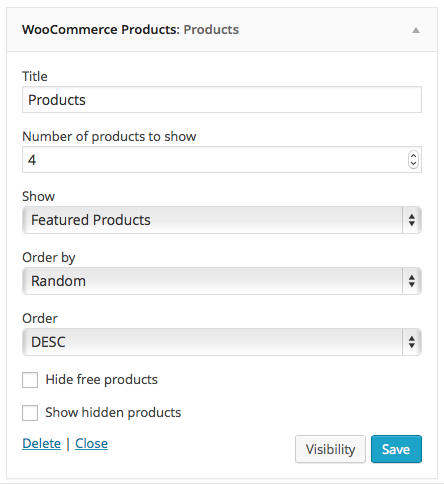
Home Featured
Genesis – Featured Posts
Go to Appearance >> Widgets and drag and drop a new Genesis – Featured Posts into the Home Featured widget area. Make sure your settings match the following:

Click to enlarge